 Role by Post
Channel Sidebar & Menus
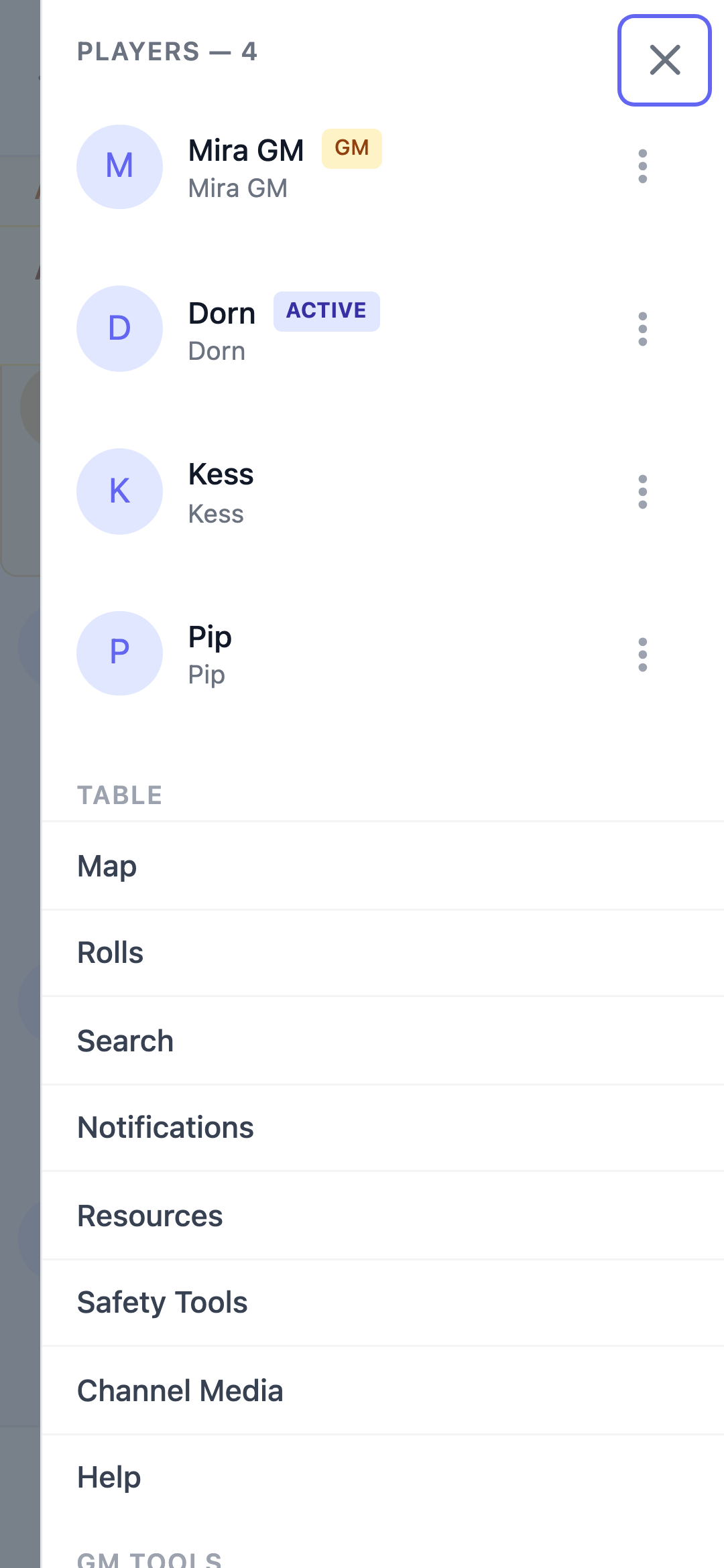
The channel sidebar holds everything you need while in a channel. Open it with the person icon on mobile; it's always visible on larger screens. On mobile, close it with the ✕ at the sidebar's top-right corner, by tapping anywhere outside it, or by pressing Escape — you can also swipe it away.
Two shortcuts sit right in the channel header so they're always one tap away: Search (magnifying glass) and Rolls (dice).
Available items
The sidebar groups items by who uses them:
Table — available to everyone:
- Member List — everyone in the channel, with role badges, AFK states, and character info; the GM is always at the top and players are listed alphabetically by character name
- Notifications — configure what you're notified about for this channel
- Safety Tools — view the channel's Lines & Veils, or press the X-Card
- Channel Media — browse every image shared in this channel and view one fullscreen
- Rolls — the channel's dice roll history
- Search — find messages in the channel history
- Help — channel-specific help
GM Tools — GM only:
- NPCs — manage the channel's NPC roster
- Active Player — name whose turn it is (or set a single player from their ⋯ menu in the member list)
- Settings — configure the channel itself
Link items
Depending on what the GM has configured, the sidebar also shows:
- Map — a link to the campaign map
- Resources — a link to shared resources (folder, PDF, etc.)
- GM Resources — GM-only resources link
- Safety Tools Doc — a link to the group's safety document