 Role by Post
GM Tools
Everything the GM can do to run and manage a channel.
Channel settings
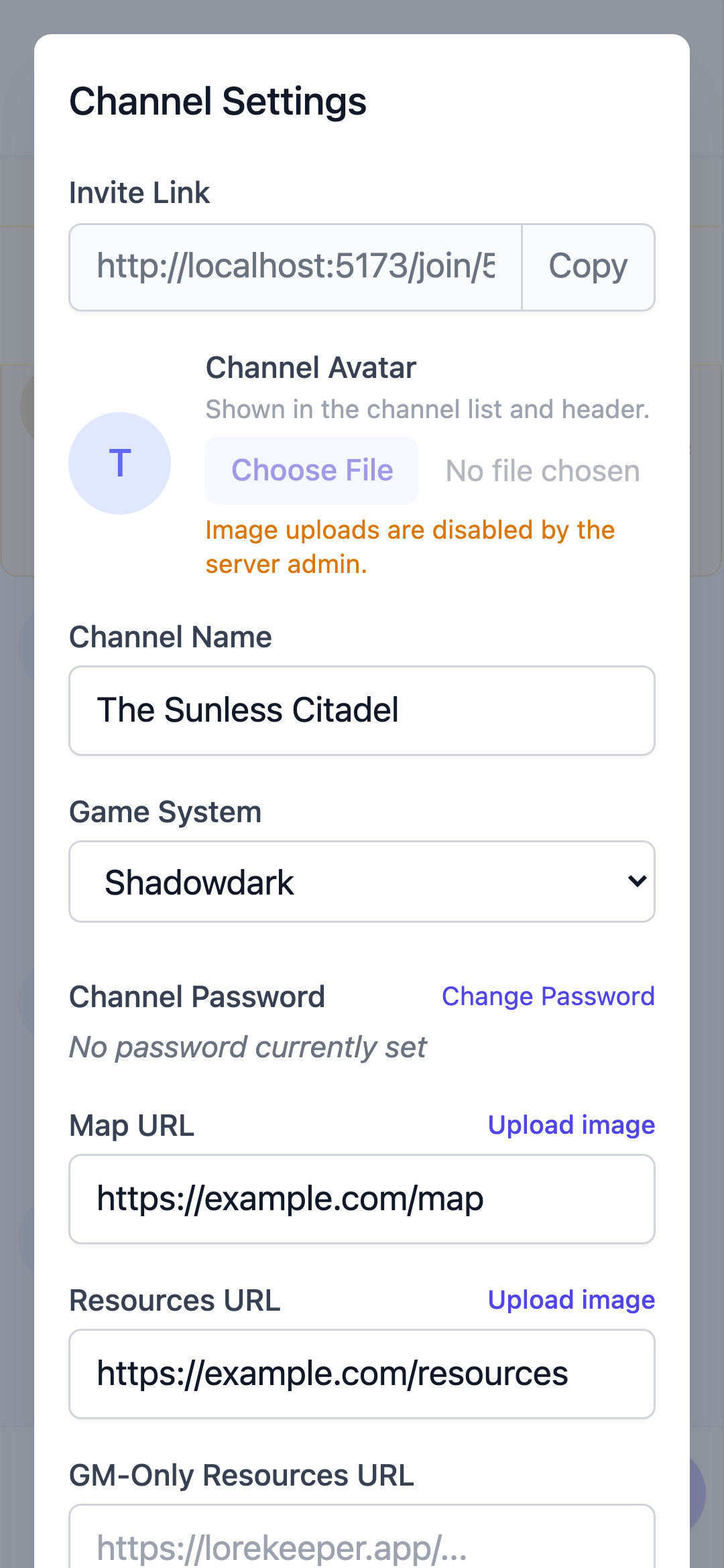
Open Settings from the channel sidebar to configure:
- Channel name (up to 80 characters) and game system
- Channel avatar — upload an image shown in the channel list and header (requires the server admin to enable image uploads)
- Status bar text and active player(s)
- Map, resources, and GM resources URLs (up to 500 characters) — the Map and Resources fields also offer Upload image buttons that store the image instead of pasting an external link
- Safety Tools Doc URL (up to 500 characters) and Lines & Veils (up to 2,000 characters each)
Managing members
- Kick a user — removes them from the channel
- Block a user — prevents them from returning or interacting
Managing NPCs
The NPCs sidebar item opens the NPC roster for the channel. From there the GM can:
- Rename an NPC — past messages keep their original name snapshot
- Re-picture an NPC — pick a game-icons.net portrait, re-randomize, or upload an image
- Delete an NPC — removes it from the roster; past messages keep their portrait snapshot
- Add a new NPC directly, with a chosen or random portrait
Setting active players
The Active Player sidebar item opens a list of the channel's players. Check one or more to name who is up next, then Save — the change applies immediately (no message needed) and sends the active player(s) an "It's your turn" notification. Leaving all boxes unchecked clears the active player.
Shortcut: open a player's ⋯ menu in the member list and choose Set as Active Player to make that player the active one right away (this replaces whoever is active now; use the modal to set several at once).
Archiving
The GM can archive a channel, removing it from the main lobby. Archived channels are still viewable and restorable from the Archived Channels item in the app menu.
Invites & privacy
Channels are private and joined via invite link. The GM can set an optional password to join.
Uploaded images (message images, channel avatars, NPC portraits, and map/resource uploads) are also private: only people in the channel can view them, and a player who is kicked or blocked loses access. The server admin's image-upload setting and size limit apply to every upload.
Messages
- GMs can post Scene and NPC messages
- Upload images — with image uploads enabled, the GM composer has an Upload button (in the "+" options) that uploads an image and inserts it into the message at the cursor; on a desktop you can also drag one or more image files straight onto the message box
- Channel Media — the sidebar's Channel Media item (available to everyone) lists every image shared in the channel. Anyone can open one fullscreen; the GM can pick several and insert them into a message at the cursor
- Tap an image to zoom — any image in a message opens fullscreen: pinch or use the +/− buttons to zoom, scroll or trackpad-pan while zoomed, and double-tap (or double-click) to fit it back on screen. Close with ✕ or Escape. If an image can't be loaded you'll see a short message and a Retry button instead
- Images hold their place — a shared image reserves its spot in the conversation before it appears, so the chat doesn't jump around as pictures load in
- Send whispers to a single player, visible only to them
- Scene messages can be edited or deleted at any time by the GM