 Role by Post
Messages
Message types
- Regular — normal conversation between players.
- Scene — a GM-only styled message that acts as a visual scene break.
- NPC — the GM speaks as an NPC, with a name and portrait.
Scene and NPC text is set in an easy-reading serif typeface, sized to read comfortably.
Markdown and emoji
Messages support Markdown and emoji. Bold, italics, lists, headings and code all work. URLs you post become clickable links.
Messages can contain up to 4,000 characters, including Markdown. The same limit applies when editing.
Editing and deleting
- Messages can be edited within 15 minutes of posting. Edited messages are marked "edited".
- Messages can be deleted, and are replaced with a "deleted" marker. Deleting asks you to confirm first.
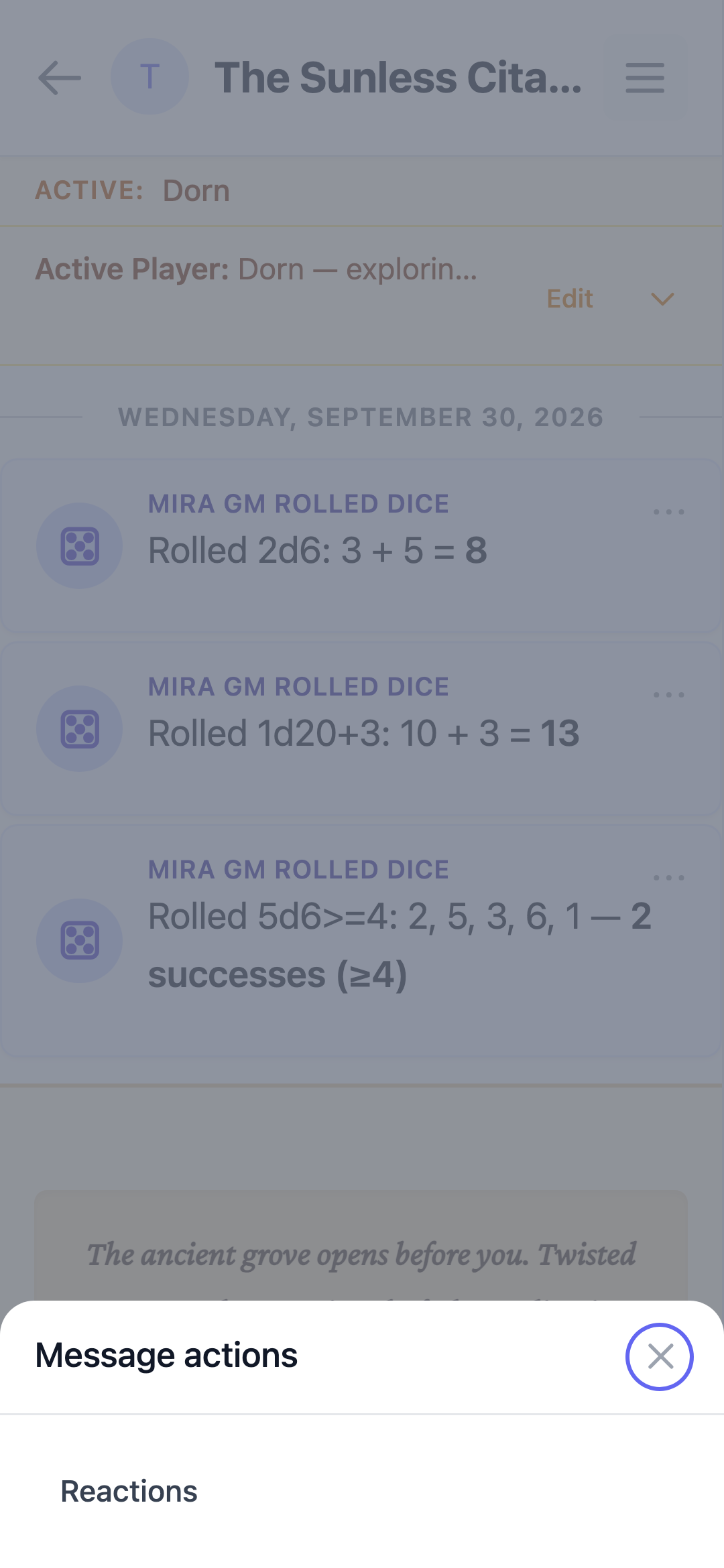
- On desktop, hover a message to see its actions (reply, edit, delete, Reactions). On mobile, tap the "⋯" button next to a message to open the same actions in a bottom sheet.
Reporting a message
If another player posts something inappropriate, hover their message (or tap the "⋯" button on mobile) and choose Report. Describe the problem in your own words and submit — the server administrators will see the report together with the message and channel it came from. You can report any message posted by someone else, including deleted ones; messages that are still sending or that failed to send can't be reported. Reasons are required and can be up to 1,000 characters. Your own messages, system notices and GM-run NPC speech can't be reported.
Replies
Any message can be replied to. A reply renders a quote of the original message; clicking it jumps to the original.
Mentions
Type @CharacterName to mention someone. Mentions autocomplete from channel members, render as a highlighted chip, and send the mentioned user a push notification. On desktop, use the arrow keys to move the highlight through the suggestions and Enter/Tab to select one.
GMs can type @all to mention every player in the channel at once.
Drafts and Resending
The message composer saves your text automatically as a draft for each channel. If you close the app or lose connection, your text will still be there when you return.
If a message or dice roll fails to send because of a network drop, it will appear as Pending and then give you Retry and Remove options. Clicking Retry is safe and guaranteed not to send a duplicate.
Reactions
React to a message or dice roll with an emoji from the Reactions action. The quick-emoji picker covers common reactions, your own reaction appears right away, and counts update live. Existing reactions show under the message. Tap a reaction to see who reacted; adding or removing your own reaction is done from the Reactions action (pick the same emoji again to take it back).
Whispers
The GM can send a whisper visible only to themselves and one specific player. Whispers appear in the same timeline but are hidden from everyone else.
Connection status
If your connection drops, a banner lets you know while keeping loaded chat available. RoleByPost catches up on new messages and channel changes when your connection returns or when you bring the app back to the foreground.
If your message history fails to load when you open a channel, you'll see a clear error with a Retry button instead of being told to refresh the page. Your unread marker ("New messages" divider) is also safe: it only moves after your history has actually loaded, so a failed load never makes messages look read that you never saw.
Opening a channel with unread messages takes you straight to that divider, so you pick up where you left off — or to the newest message when you're all caught up. The view stays put while pictures finish loading in, and once you scroll yourself it never pulls you back.
Server messages (announcements & the admin inbox)
The Messages item in the app menu is a separate space from channel chat:
- Announcements from the server administrator appear for everyone, or for GMs only when they're addressed to GMs — a small chip ("All users" / "GMs") on each announcement shows the audience. Suspended players and GMs don't see announcements while suspended (but can still message the server admin).
- Message the server admin — tap Message Admin to start a conversation with the server administrator. You keep one support conversation; sending again reuses it (suspended players included).
- An unread dot on the menu item shows when there's something new for you.