 Role by Post
Lobby & Joining Channels
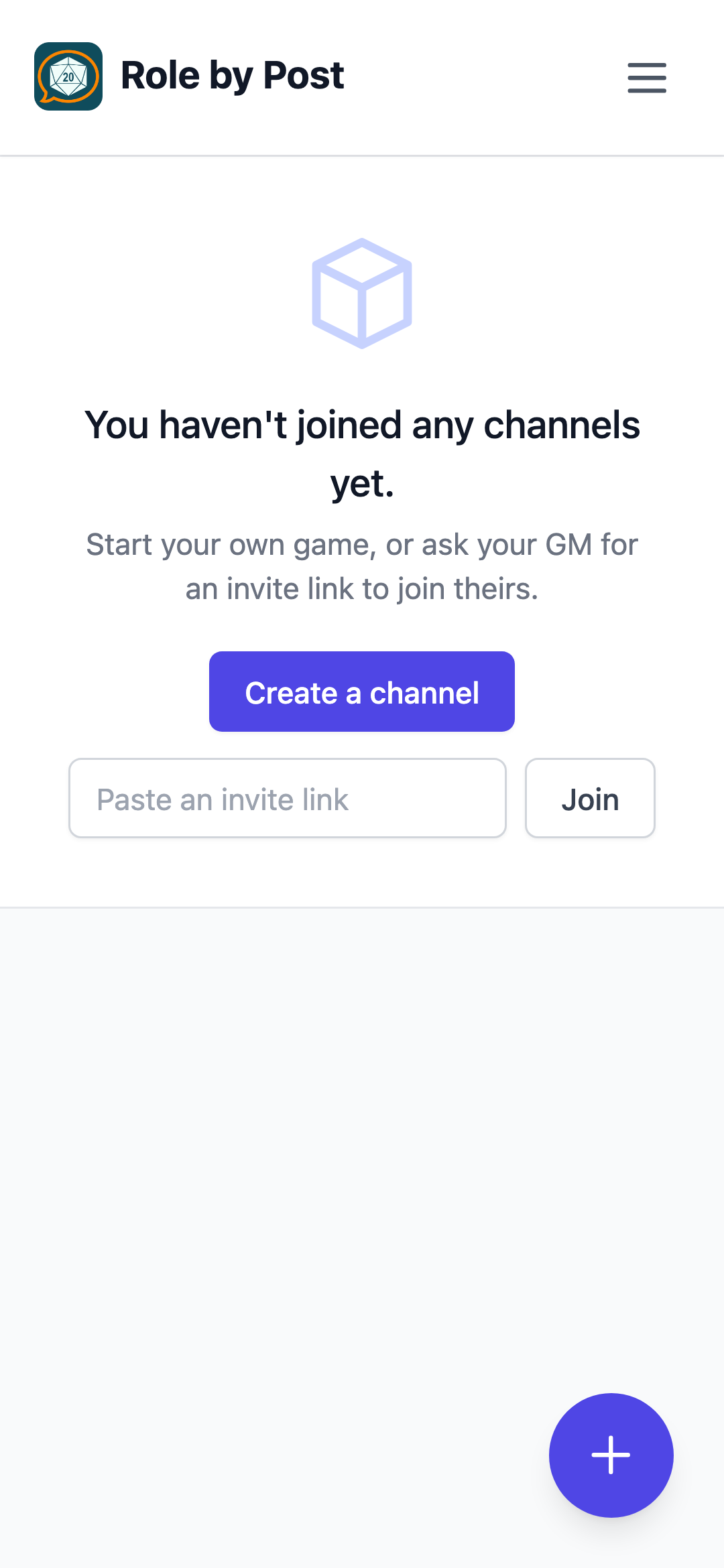
The lobby is the first screen after signing in. It lists the private channels you've joined. Each channel shows a preview of its most recent message (or No messages yet) with the sender's name, a short timestamp, and a small GM chip when you run it — plus a count of unread messages when there's something new to read.

Creating a channel
Tap Create a channel (+) to start your own game. You'll be the Game Master. There's a limit to how many active channels each player can have — when you reach it, the create button explains why.
Joining a channel
Channels are invite-only. Ask your GM for an invite link and either:
- Tap the link directly, or
- Paste it into the Paste an invite link box on an empty lobby and tap Join
Some channels also require a password — your GM will share it with the invite.
Finding things
Use the Search box in the header to find a channel quickly. On smaller screens the search box and the dark-mode toggle tuck into the app menu instead, so they never crowd the app's title.
The app menu
Tap the ☰ button in the top-right to open the app menu (Profile, Archived Channels, Help, and more). Close it with the ✕ at the menu's top-right corner, by tapping anywhere outside it, or by pressing Escape. On a touchscreen you can also swipe in from the right edge of the screen to open it, and swipe back out to close it. Inside a channel, the sidebar's own ☰ button opens the player sidebar, which closes the same way (✕, tap outside, swipe, or Escape).
Archived channels
Channels your GM archived move out of the lobby. You can still view them from the Archived Channels item in the app menu.